Fortnite Play Online: Conquer Crashes and Conquer the World
Highlights
- Embark on a thrilling journey through the exhilarating world of Fortnite, but beware of crashing during the tutorial - fear not, for this guide will help you overcome this frustrating obstacle.
- Explore a plethora of potential solutions, from updating graphics drivers to adjusting in-game settings, to resolve the crashing conundrum and get back to collecting resources and conquering the Fortnite world.
- Remember that troubleshooting can be a trial-and-error process, but with perseverance and a sprinkle of good fortune, you will soon be back in action, experiencing the joy and triumph of the Fortnite universe.
Ah, the exhilarating world of Fortnite! Our intrepid player has embarked on a thrilling journey, only to be met with the frustrating obstacle of crashing during the tutorial. Fear not, dear player, for I am here to guide you through this treacherous terrain and help you find a solution to your crashing woes. Let us dive headfirst into the depths of this issue and unravel the mysteries behind these crashes.
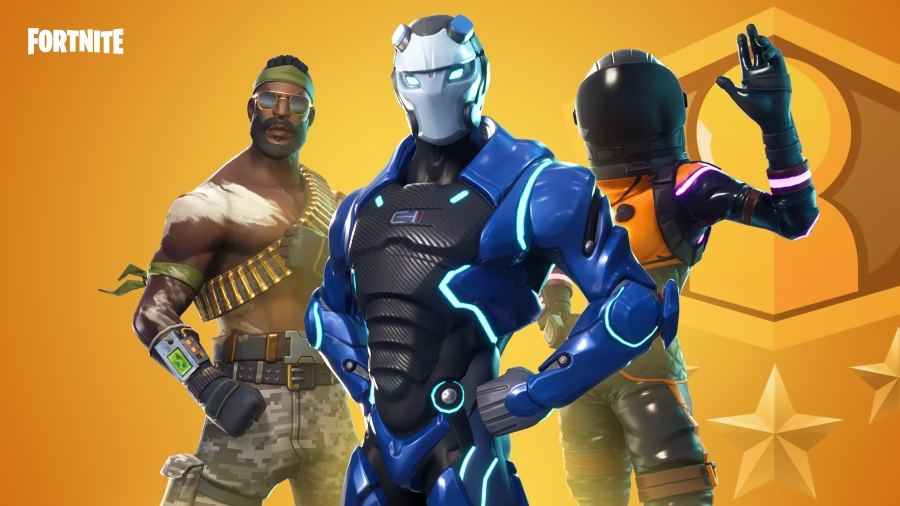
It appears that our player is encountering crashes every time they attempt to collect resources after receiving guidance from the ever-helpful Ray to acquire a more formidable weapon. Our valiant player has already explored various avenues, such as utilizing DirectX11, DirectX12, and even the performance mode, but alas, none have proven successful in resolving the crashing dilemma.
But fret not, fellow Fortnite enthusiast! I have delved deep into the gaming universe to bring forth a plethora of potential solutions to your crashing conundrum. Let us now embark on a detailed exploration of each possible remedy:
1. Update your graphics drivers: Outdated graphics drivers often clash with games, leading to compatibility issues. Visit the website of your graphics card manufacturer and download the latest drivers specifically designed for your model. Once installed, restart your computer and give Fortnite another whirl.
2. Verify game files: Sometimes, game files become corrupted or go missing, resulting in crashes. Open the Epic Games Launcher, navigate to your Fortnite library, locate the three dots adjacent to the "Launch" button, and select "Verify." This process will meticulously inspect your game files for any errors and automatically rectify them if necessary.
3. Adjust in-game settings: Lowering your graphics settings can alleviate the strain on your system, potentially reducing crashes. Experiment with different settings, such as reducing the resolution, disabling shadows, or decreasing the effects quality. Remember, striking the right balance between performance and visual aesthetics is key.
4. Disable background applications: Certain background applications or processes may monopolize system resources, causing Fortnite to crash. Close any unnecessary programs running in the background, particularly resource-intensive ones like video editing software or antivirus scanners.
5. Reach out to support: If all else fails, it is time to summon the cavalry. Contact the Fortnite support team and provide them with comprehensive details about your crashing issue. They possess the expertise to offer additional troubleshooting steps or specific insights tailored to your unique problem.
Remember, dear player, troubleshooting can be a trial-and-error process. Do not despair if the initial solution falls short. Persevere, explore different approaches, and with a sprinkle of good fortune, you shall soon be back in action, collecting resources and conquering the Fortnite world alongside your comrades. May your gaming endeavors be filled with joy and triumph!
Related Articles
Fortnite Tournament: The Lively Legacy of Save the World
Fortnite for PC: How Console Players Can Sneak a Peek at the Epic Wargames Cutscene
Fortnite Pictures: Uncovering Hidden Gems and Mysterious Marvels in the World of Fortnite
Fortnite Update Unleashes Zombie Horde: Survive and Thrive with These Tips!