How to install Sims 4 CC
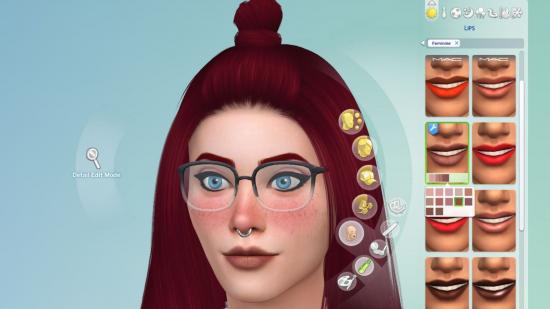
Need to know how to install Sims 4 CC and mods? Installing Sims 4 CC, or custom content, is just one of the ways to add even more individuality to your Sim and their environment, alongside the massive number of mods available. While the base game and official expansion packs provide a lot of customization options to the classic game, there's always room and a demand for more - and the Sims 4 modding community demonstrates this with some spectacular content.
The Sims 4 shows no signs of slowing down, with new official expansion packs still being released regularly and more Sims 4 mods and CC packs than ever. Here's how to download CC and mods to Sims 4 so you can overhaul your gameplay and further update your Sims 4 Sim, furniture, and recipes with custom content.
How to download and install Sims 4 CC
Here are the steps you need to install Sims 4 CC or mods:
- Go to 'Documents' and navigate to the 'Electronic Arts' folder.
- Open 'The Sims 4' folder.
- Separately, locate your downloaded CC pack or mod.
- Paste or drag the pack into the appropriate destination within the 'The Sims 4' folder from before.
There are two folders used for custom content; store Lots and Sims in the 'Tray' folder, and everything else goes in 'mods'.
CC file types
While it's simple enough in theory, there are a few different file types depending on what type of custom content or mods you're downloading.
Here's a breakdown of different types of custom content files:
Custom content
Most custom content for items like clothing, objects, and mods will use the .package file extension. These require no formal installation and simply need to be placed within the mods folder or a relevant subfolder within that for them to work.
Lots and Sims
Lots can be either a .blueprint, .bpi, or .trayitem file, while Sims can be .hhi, .householidbinary, .sgi, or .trayitem file types. Again, there are no steps required to install these files past placing them in the Tray folder or a relevant subfolder within that.
Script mods
Script mods can be one of a few file types: .ts4script, .pyo, .py, or .pyc. .ts4script files can be placed in the mods folder in the same way as .package files, while .pyo, .py, and .pyc files must be left inside their zipped/archive folder inside the mods folder. Note that the .pyo file type is no longer supported by The Sims 4, and Script mods with that file type will likely be outdated.
Organizing custom content and mods
Custom content and mods aren't without their problems, so we heavily recommend organizing your downloaded content well and creating subfolders that categorize the type of content you have downloaded, i.e., hairstyles, clothing, objects, etc. This makes it much easier to find and troubleshoot any custom content or mods that aren't working properly or showing up in your game.
Subfolders can go a maximum of five folders deep before they stop being recognized by the game, which is especially useful for categories like clothing, where you may have many subcategories, like shirts, trousers, etc.
Note that Script mods, which usually consist of several files, cannot be placed into subfolders, so we recommend creating a single folder for that Script Mod within the main Sims 4 mods folder and placing all relevant files there.
You can also rename your files as long as they end in the correct file extension, which is useful for logging the content creator and its item type.
Activating Sims 4 CC and mods
Sims 4 players will need to manually enable any downloaded custom content and mods through the in-game menu. To do this, press ESC, then go to 'Game Options', then 'Other'. From there, you can select 'Enable custom content and mods' and 'Script mods Allowed' to turn on your custom content.
Note that this can be disabled when EA releases official The Sims 4 patches, so always make sure this is turned back on after a patch has been installed.
It's worth checking after official patches that any extensive mods or Script mods you have installed are compatible with that current version of the game. If not, turn them off until they are updated to prevent any crashes or bugs appearing in your game.
How to find Sims 4 custom content in-game
To check your custom content and mods have been installed correctly, you can view this in-game by pressing ESC, then go to 'Game Options', then 'Other', and clicking 'View custom content'. The game should list everything that it has successfully installed.
All content relating to a Sim's visuals, from skin tones down to accessories and clothing, will be in Create-A-Sim mode. Downloaded objects will be viewable in Buy and Build Mode, which you can filter by custom content only by heading to 'Filter Items' on the right-hand side, selecting 'Content', and then ticking 'custom content' from the drop-down menu.
Downloaded Lots and Sims can be found by heading to the Gallery and going to 'My Library'. Remember to tick 'Include custom content' from the left-hand menu, as this will be unticked by default and will prevent you from viewing anything you have downloaded.
Where to download Sims 4 CC
There are a plethora of places from which you can download Sims 4 custom content. Check our guide to the best Sims 4 CC downloads, or browse some of the great sites listed below:
- Modthesims.info: One of the biggest Sims 4 custom content sites that contains what feels like a bottomless pit of Sims 4 CC for you to explore.
- Thesimsresource: Another huge site for all kinds of custom content
- Sims4downloads.net: A blogroll-style site that collates new custom content from a multitude of sites. This site is particularly useful for finding individual content creators.
- Tumblr: Yes, you heard correctly. Tumblr still has a thriving Sims community, ranging from aesthetic photo edits and role-playing to custom content creation. We recommend using the tags #The Sims 4, #Sims 4 custom content, #TS4 CC and #Simblr to find custom content and creators.
- Twitter: Like Tumblr, it's another great platform to use to explore the work of individual creators. We recommend searching using the tags #ts4cc, #thesims4cc, and #sims4cc.
- Patreon: Several Sims 4 CC creators have been using the platform, making everything from exquisite building lots, to diverse hair and skin tones, to extensive gameplay additions that often outshine Maxis' work.
Glossary of terms
- Mods: Modifications that can change the way the game and Sims behave. These can range from minor game changes to large system overhauls. These often need to be checked for updates more than custom content to keep working, and can sometimes become incompatible with the game after official updates.
- CC: Abbreviation for custom content.
- Mesh: A skeleton of an object. Everything in The Sims 4 requires a mesh, so when downloading custom content that uses a new mesh, rather than an already existing mesh in the game, ensure that it is also downloaded or your items will not appear.
- Swatches: Color options for all items
- Recolor: An alternative recolor of existing Maxis content or custom content made by other creators. Again, you need to make sure you have the correct mesh when downloading a recolor.
- Default replacement: custom content that replaces an existing Maxis-made item or color swatch in the game. You may use this if you want to override things like clothing or furniture colors without adding additional swatches to your game.
- Non-Default: custom content that adds an item or color swatch to the game rather than overriding existing items.
- Alpha CC: custom content that is highly detailed and is designed to look as photorealistic as possible.
- Maxis Match CC: custom content that aims to match the art style of The Sims 4.
- 50/50 Method: A prevalent method of troubleshooting bugged custom content and mods.
Now you know how to install Sims 4 CC and mods; you're well on your way to adding even more to the Sims experience, keeping one of the best PC games fresh after all this time. For more ways to change the game, check out the Sims 4 cheats list if you're looking for some help running your sim's lives. If you want something a little spicier, there are also plenty of Sims 4 sex mods to choose from, too.